How to Safely Install an Android App (2026)
The safest way to install an Android app is to download only from an official website, turn on "Install unknown apps" only when you need it, then switch it off again once the install is finished. This OKEGOCUCI guide explains what an installer file is, how to manage that permission on Android 8 and later (and on older Android), how to review app permissions, and how to use a Play Protect scan. For OKEGOCUCI apps, use the official Download page as the trusted source.
What is an installer file?
An installer file, or Android Package Kit, is the official install-file format for Android apps. It works like an installer on a computer: it contains the app's code, icon, and the information your phone needs to install it. A filename that ends in .installer file does not make the file safe. Anyone can rename or repackage a file as an installer file, so the download source matters more than the name or icon you see.
Download only from official websites
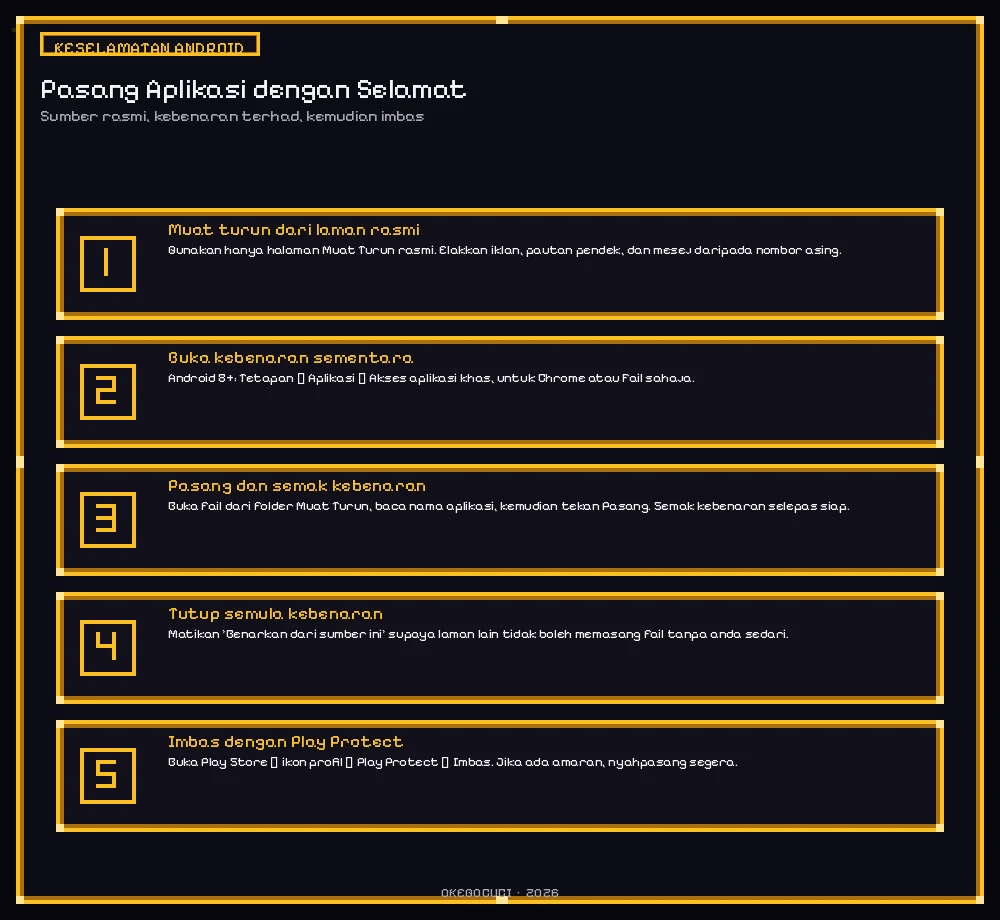
Avoid downloading installer files from ads, shortened links, messages from unknown numbers or accounts, and sites that imitate an official brand. Before you tap a download button, check the URL in the browser address bar. If the domain spelling looks wrong, stop and go to the official site by typing the address yourself.
For OKEGOCUCI apps, download only from the OKEGOCUCI Download page. That page is provided so you do not have to hunt for files on third-party sites. If you are unsure whether a link is official, also read how to spot official channels and avoid scams.
How to enable "Install unknown apps"
Android treats apps from outside Google Play as unknown sources. That warning is normal. It is not proof the file is dangerous — and it is not a guarantee the file is safe either.
Android 8 and later (per app)
Since Android 8, this permission is granted to the source app separately, for example Chrome or Files, not to the whole phone.
- Open Settings.
- Choose Apps, then Special app access. You can also use the settings search box and type "Install unknown apps".
- Select the app that will install the file — usually Chrome, Files, or the file manager you use.
- Turn on Allow from this source only for that app.
If your phone shows a warning when you open the installer file, follow the prompt to this setting, allow the permission for that browser or file manager, then go back and continue the install.
Android 7 and earlier (Unknown sources)
On older Android, the setting is global. Open Settings → Security (or Lock screen and security), then turn on Unknown sources. Because this allows installs from any source, switch it off again as soon as the app is installed.
Steps to install an Android app
- Download the file only from an official website, such as the OKEGOCUCI Download page.
- Make sure you have enough storage and a stable internet connection.
- Open the file from the notification bar or your Downloads folder.
- Read the app name and any permissions shown before you tap Install.
- Wait until the install finishes, then open the app only if you are confident the source is official.
Turn the permission off again after installing
After the app is installed, return to the same setting and turn off Allow from this source for Chrome, Files, or the file manager you used. On Android 7 and earlier, turn off Unknown sources. Leaving this setting on makes it easier for another site or app to install a file without you noticing.
Check app permissions before and after install
Permissions decide which data and phone features an app can use. Review them before you tap Install, if the install screen lists them, and again after the app is on your phone:
- Open Settings → Apps → [app name] → Permissions.
- Allow only the permissions that reasonably match what the app does.
- Be cautious if an app asks for SMS, Phone, Contacts, or "display over other apps" without a clear reason.
- Decline accessibility services unless you fully understand why they are needed. This permission can read your screen and tap buttons on your behalf.
- Do not turn on device admin for an app you do not trust.
Google Play Protect scans
Play Protect is the built-in security scan on most Android phones. It can check apps you have installed, including those that came from an installer file.
- Open the Play Store, tap your profile icon, then choose Play Protect and tap Scan.
- Make sure Play Protect is switched on in those settings.
- If Play Protect shows a warning, do not ignore it. Uninstall the app, then download it again only from an official source if you still need it.
Common risks and warnings
- Fake installer files: the icon and name look like the official app, but the code inside is different. Download only from official websites, not from random search results or files shared in a chat.
- Modded apps: "free premium" versions or already "unlocked" files are often bundled with malware, keyloggers, or hidden ads.
- Apps that ask for SMS or accessibility: SMS access can be used to read OTP codes; accessibility can control your phone. Decline these if you did not expect them.
- Never share an OTP, password, or verification code with anyone, including people who claim to be support staff. Also read how to spot fake OKEGOCUCI accounts.
- Ignore messages that pressure you to "install now" or ask you to download a file through a link you cannot verify.
Contact OKEGOCUCI official channels
If you are not sure a download link is official, contact us only via official OKEGOCUCI WhatsApp or Telegram @okegocucibot. Ignore installer file links sent from unknown numbers or accounts.
Related reading
- OKEGOCUCI Download page
- OKEGOCUCI blog list
- How to spot fake OKEGOCUCI accounts
- How to spot official channels and avoid scams
FAQ
What is an installer file?
An installer file (Android Package Kit) is the official install-file format for Android apps. A .installer file filename does not make the file safe; always download from an official website.
How do I enable the Install unknown apps permission?
On Android 8 and later, go to Settings → Apps → Special app access → Install unknown apps, then allow only Chrome or Files. On Android 7 and earlier, turn on Unknown sources under Settings → Security.
Should I turn that permission off after installing?
Yes. After the app is installed, switch "Allow from this source" back off for your browser or file manager. On older Android, turn off Unknown sources. This helps stop unexpected installs.
Do I need a Play Protect scan after installing an installer file?
It is strongly recommended. Open the Play Store → profile icon → Play Protect → Scan. If you see a warning, uninstall the app and download it again only from an official source.
Where is the safest place to download an OKEGOCUCI installer file?
Use the official Download page at okegocuci.online. Do not download from ads, shortened links, or messages from unknown numbers.
What should I do if an app asks for SMS or accessibility access?
Do not allow it unless you expected that permission. SMS access can be used to read OTP codes, and accessibility can control your phone. Never share an OTP with anyone.