How to Protect Your Android Phone from Hackers and Harmful Apps (2026)
The most effective way to protect your Android phone is to lock the screen with a strong PIN, pattern, or password, keep Google Play Protect on, install system updates, and turn on Find Hub before the phone is lost. This guide also covers app permissions, 2-step verification, a SIM PIN, public Wi-Fi, backups, and what to do if the phone is stolen or hacked. Menu names can differ by brand, so search in Settings if a path does not match.
Install apps only from the official Download page and follow the guide to installing an Android installer file safely. For a suspicious file or link, see how to spot fake apps and phishing links.
Screen lock: the first and most important step
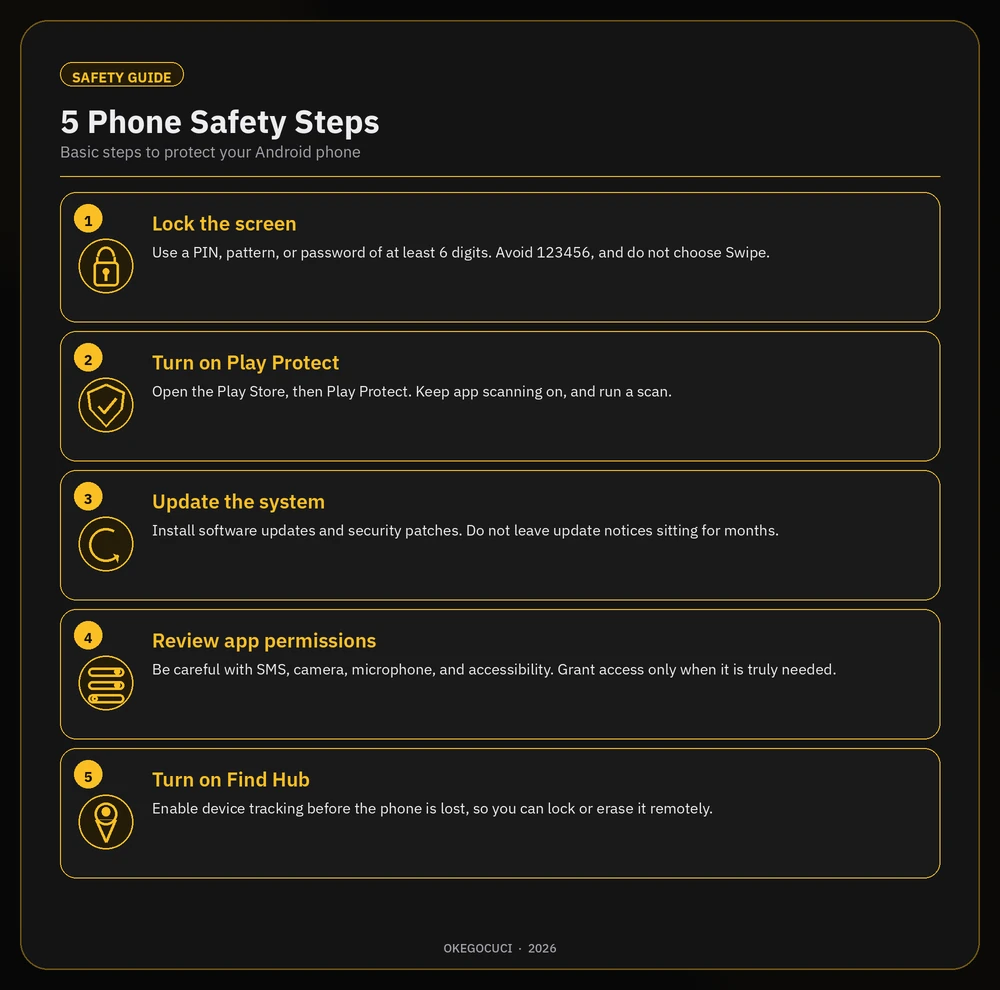
Without a screen lock, anyone who picks up your phone can open messages, banking apps, and email. On most phones running Android 13 or later, go to Settings → Security & privacy → Device unlock → Screen lock. On older models, try Settings → Security → Screen lock. Choose a PIN, pattern, or password — Google recommends at least 6 digits. Avoid 123456 or your date of birth, and do not use Swipe or None. Keep a PIN as the backup for fingerprint unlock, and never share it.
Turn on and use Google Play Protect
Google Play Protect checks apps before and after you install them, including files from outside the Play Store, and can warn you or remove a harmful app. Open the Play Store, tap your profile icon, then Play Protect and the settings (gear) icon. Make sure Scan apps with Play Protect is on, then tap Scan. If there is a warning, uninstall the app; do not turn scanning off just to finish an install. See the article on fake apps and phishing links.
Keep system and security updates current
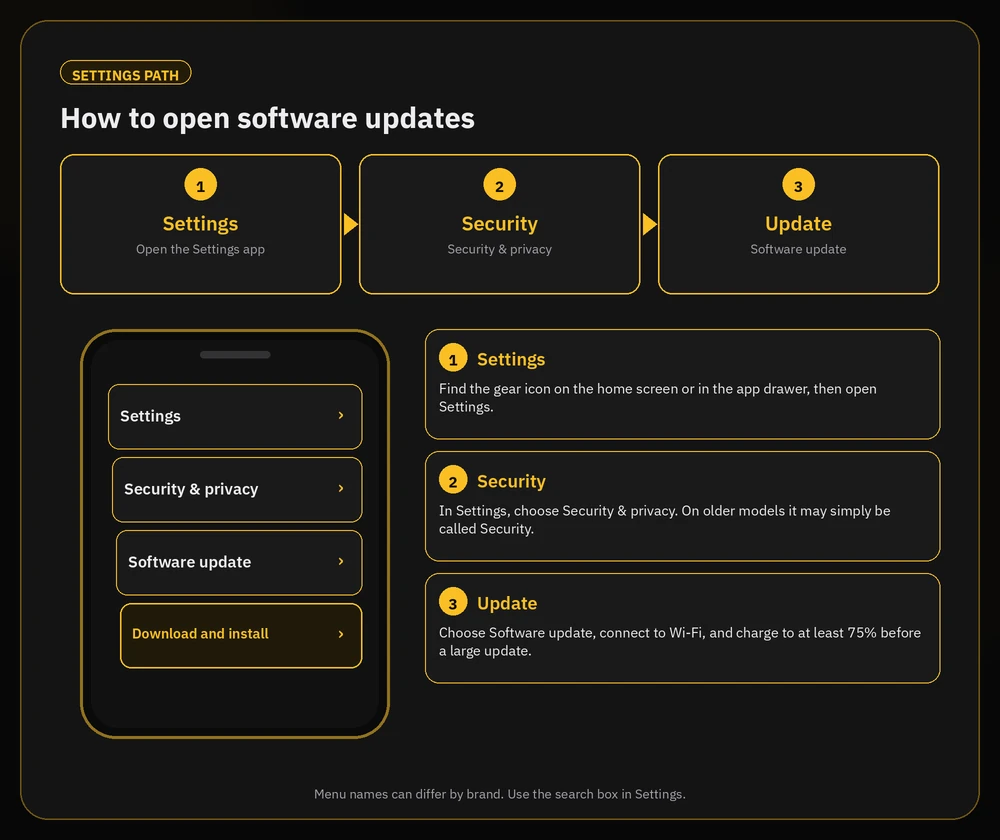
Updates close known weaknesses. Check the Android version, security update, and Google Play system update under Settings → About phone → Android version (on Samsung, About phone → Software information). For a pending update, go to Settings → System → Software updates; on many Samsung phones, use Settings → Software update → Download and install. Connect to Wi-Fi and charge to at least 75% before a large update, and do not leave update notifications for months.
Review app permissions
Apps should only have the access they need. Be careful with SMS, Camera, Microphone, Location, Contacts, accessibility, and device-admin permission — SMS access can read OTP codes, and accessibility access can tap buttons for you. Go to Settings → Security & privacy → Privacy → Permission manager (or search for “Permission manager”). Choose Allow only while using the app when that is enough, and revoke permissions that are not reasonable. After installing an installer file, check permissions before you sign in; see the installer file installation guide.
2-step verification for Google and WhatsApp
2-step verification adds a second check when someone tries to use your account on a new device. For Google, open Settings → Google → Manage your Google Account → Security & sign-in, then 2-Step Verification, and follow the prompts. Prefer Google prompts if offered; they hold up better against SIM-swap attacks than SMS codes. Never share codes or your password.
For WhatsApp on Android: tap the three-dot icon → Settings → Account → Two-step verification, then turn it on. Create a unique 6-digit PIN — not 123456 — and add a recovery email. Do not tell anyone your PIN or registration code, including someone who claims to work in support.
Protect your SIM with a PIN
If a stolen SIM is moved to another device, your number can be used to receive verification codes. Go to Settings → Security & privacy → More security settings → SIM lock → Lock SIM. Enter the current PIN from your operator, then change it — do not leave a publicly known default PIN. If the PIN is entered incorrectly several times (usually three), the SIM locks and you need the PUK from your operator. Do not keep guessing.
Turn on Find Hub before the phone is lost
Find Hub (formerly Find My Device) lets you locate, lock, play a sound on, or erase the phone remotely. Open Settings → Google → All services → Find Hub and turn on Allow device to be located. On some models, look for Find Hub under Settings → Security & privacy. Keep Location on, and enable Remote Lock or theft protection if available.
If the phone is missing, go to android.com/find, sign in to the same Google Account, then play a sound, mark it as lost, or erase the data if you are sure it will not come back. To lock the screen with your phone number, use android.com/lock if Remote Lock is on. A remote erase deletes the data, so set up a backup first.
Avoid public Wi-Fi risks
Do not sign in to email, banking, or important accounts on public Wi-Fi in cafes, airports, or hotels. Use mobile data for sensitive tasks, and turn off auto-join for open networks. If you already entered a password on a questionable page, change it on the official site you type yourself, and see the phishing article.
Back up your data regularly
A backup makes it easier to restore contacts, messages, settings, and app data if the phone is stolen or erased remotely. Open Settings → Google → All services → Backup and turn Backup on. Use a PIN, pattern, or password — not swipe — because some data is encrypted with your screen lock. A Google Account usually includes 15 GB of free storage. Turn this on now; a backup can take up to 24 hours.
What to do if your phone is stolen or hacked
- Try calling the phone. If there is no answer, open android.com/find, then play a sound or mark it as lost.
- Contact your operator through its official hotline or app to suspend the SIM. Have the IMEI ready if asked — dial *#06# if you recorded it, or find it in Find Hub.
- From another safe device, change the passwords for your Google Account, email, and banking, then sign out unknown devices.
- Make a police report with the phone details, IMEI, and time of the incident. If money or a financial account was affected, follow the guide to reporting online scams in Malaysia.
- If the phone is still with you but you suspect it has been hacked: do not enter an OTP on a suspicious screen. Uninstall questionable apps, revoke SMS or accessibility permission, and run a Play Protect scan.
Contact official OKEGOCUCI channels
If you are unsure whether a setting, link, or file is official, contact us only through official OKEGOCUCI WhatsApp or Telegram @okegocucibot. We will not ask for your password, PIN, or OTP. To log in or register, type okegocuci.com yourself.
Related reading
- How to install an Android installer file safely
- How to spot fake apps and phishing links
- Online scams in Malaysia: how to report
- OKEGOCUCI Download page
- How to identify official channels and avoid scams
- OKEGOCUCI blog list
FAQ
Is a screen-lock PIN enough, or do I also need a fingerprint?
A strong PIN, pattern, or password is the basic protection. Fingerprint unlock is convenient, but not a replacement. Avoid 123456, and do not choose Swipe or None.
How do I make sure Google Play Protect is turned on?
Open Play Store → profile icon → Play Protect → settings. Make sure “Scan apps with Play Protect” is on, then run a scan. Do not turn this off to force an install.
What is the difference between an Android update and a security update?
The Android version is the larger system release. Security updates and Google Play system updates patch weaknesses separately. Check all three under Settings → About phone.
Why should I be careful with SMS or accessibility permission?
SMS permission can let an app read OTP codes, and accessibility access can tap buttons on your behalf. Grant these only to apps you trust that need them.
What should I do first if my Android phone is lost or stolen?
Open android.com/find, lock or mark the device as lost, and ask your operator to suspend the SIM. Change important passwords from another device, then make a police report.
Should I use public Wi-Fi to sign in to important accounts?
No. Use mobile data for email, banking, or account sign-in, and turn off automatic connection to open networks.